
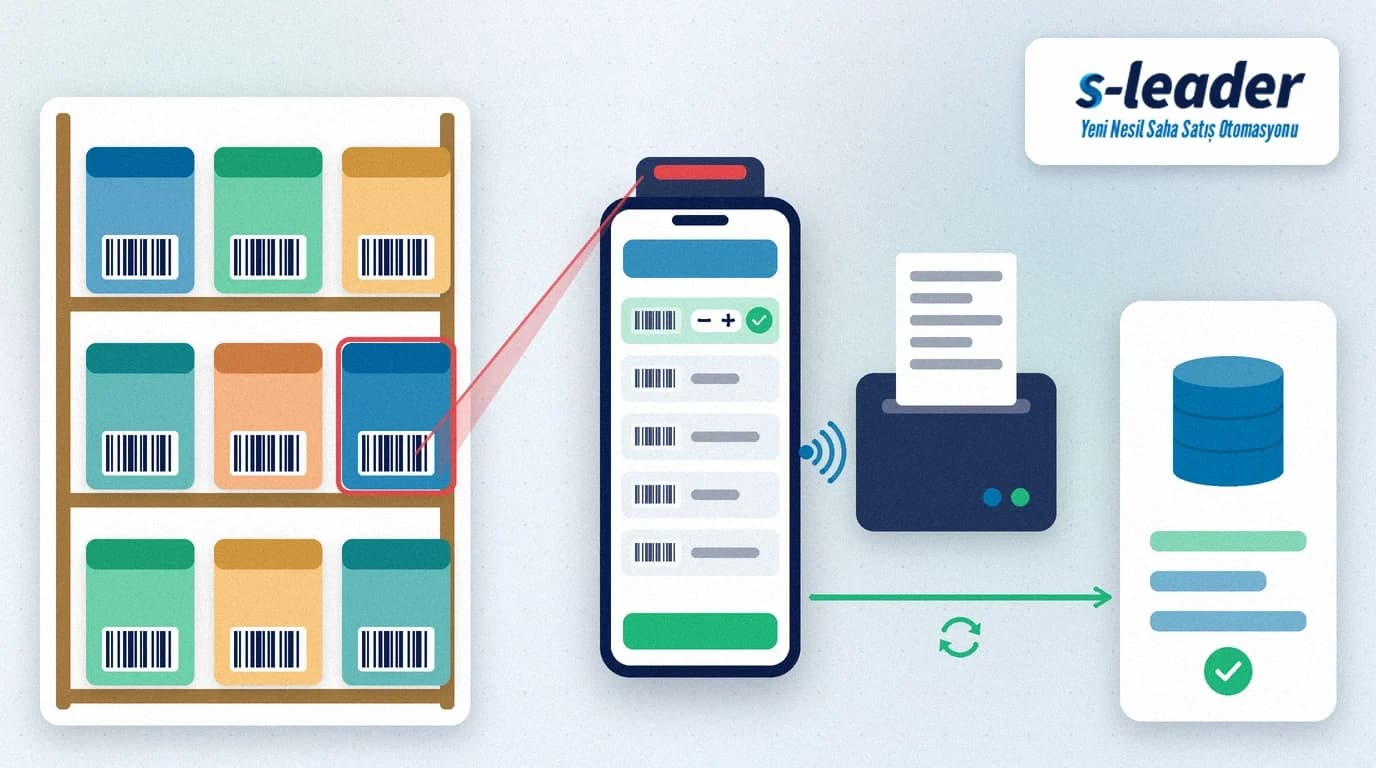
In short: Barcode order entry means the field sales rep adds products to an order by scanning the barcode on the shelf or the case with a handheld scanner or a phone, instead of searching a long product list. Set up properly, barcode order entry stops wrong products, wrong pack units and typing errors at the moment of order and shortens the visit.
In front of a supermarket shelf, a rep tries to find the right item among five pack sizes of the same brand. The customer asks for a case, but a single unit goes onto the order; or the wrong one of two similarly named products is picked. These small slips turn into wrongly picked orders, returns and arguments with the customer. Scanning takes the product's identity from the code on the packaging rather than from the rep's memory.
What is barcode order entry?
Barcode order entry is a way of taking orders in which order lines are created by scanning the product barcode, and the product, unit and price come automatically from the product record linked to that barcode.
Barcodes on retail products usually carry the GS1 product number, the GTIN. GS1 defines the GTIN as the number used to uniquely identify trade items, meaning products or services that are priced, ordered or invoiced at any point in the supply chain. What matters in field sales is that this number is linked to the right product record and the right unit in the ERP.
Which errors does barcode order entry prevent?
Wrong product: items with similar names, sizes or flavours sit next to each other in a list. Scanning opens the right product record directly, so picking errors disappear.
Wrong unit: a single item and its case usually carry different barcodes. If the barcodes are linked to the correct units in the ERP, scanning the case barcode puts the case unit on the order line without the rep choosing a unit.
Typing and search errors: typing product codes or scrolling through a list takes time and adds risk. Scanning turns it into a single action.
Missed products: a rep who walks along the shelf scanning gaps can also add items the customer forgot. To plan which products to propose during a visit, see our article on suggested orders.
How to set up barcode order entry step by step
1. Complete the barcodes in your product records
Start with master data, not devices. Check that every saleable product in the ERP has a barcode, that no barcode is assigned to two different products, and that unit, pack and case barcodes are linked to their own units. The list of products with missing or wrong barcodes is your first work list.
2. Define scanning rules
When the same barcode is scanned twice, does the quantity increase or does a new line open? Does a quantity screen open automatically after each scan? What does the rep see when a barcode is not in the system? Agreeing these rules up front stops different reps from developing different habits in the field.
3. Tie price, promotions and stock to the scan
A scan should show not only the product name but also the customer-specific price, the valid promotion and the available stock on the same screen. That way the rep knows before sending the order whether the item can be delivered. We cover these topics in detail in our articles on promotion and discount management in field sales and stock visibility in field sales.
4. Pilot on real shelves
Test the setup with a few real customers, not in the office. Worn labels, poorly lit shelves and several barcodes on one case only show up in the field. During the pilot, log every barcode that cannot be read or is not in the system and pass the list to the master-data team.
5. Complete synchronisation and documents
An order created by scanning must reach head office and the ERP when a connection is available; areas without coverage need an offline field sales setup. For van-sales teams, the same scanning flow can become an invoice that is printed on a mobile printer in the field.
Handheld scanner or phone?
A handheld terminal with a barcode scanner suits teams that scan many items a day, work in warehouses or along busy shelves: trigger scanning is fast and the device is built for rough use. On the other hand it costs more and is one more device to carry.
An Android phone or tablet is a practical start for teams that scan fewer items per visit and enter much of the order on screen. The rep works with the device they already use. Before you decide, observe during the pilot how many lines your reps scan per visit on average; it is the most reliable basis for the choice.
What if a barcode will not scan?
Barcodes do not always scan: the label may be torn, the product may be new or not yet set up in the ERP. In that case the rep must still be able to add the product by searching its name or code. What matters is that such lines are flagged and reported regularly to the master-data owner at head office. A product that is always added by hand is the clearest sign of a missing barcode in its record.
Barcode order entry with S-Leader
In the S-Leader field sales app, orders and invoices can be entered by scanning barcodes with handheld barcode terminals or Android tablets and phones. Valid promotions are shown to the rep during order taking, invoices can be printed in the field on Bluetooth printers, and approved orders are recorded in Logo or Mikro ERP through the Logo ERP integration or the Mikro integration. At ÇAP Teknoloji we run the setup with your team, from checking your barcode master data to scanning rules and the field pilot. Contact us for a free demo.
Summary
Barcode order entry takes the product's identity from the code on the packaging and cuts wrong-product, wrong-unit and typing errors at the moment of order. Success depends on master data before devices: complete barcodes linked to the right units, clear scanning rules, price and stock visible at the scan, a pilot on real shelves and a regular feedback loop for barcodes that will not scan.
Sıkça Sorulan Sorular
Do you need a handheld scanner for barcode order entry?
No. Orders can also be taken by scanning barcodes with an Android phone or tablet. For teams that scan many lines a day, a handheld terminal with a barcode scanner can be faster and more robust.
How do you separate unit and case barcodes?
A single item and its case usually carry different barcodes. If these are linked to the matching units in the ERP product record, scanning the case barcode automatically puts the case unit on the order line.
What happens if a scanned barcode is not in the system?
The rep keeps going by searching the product by name or code. These lines should be flagged and reported to the master-data owner so the missing barcode is added to the product record.
Does barcode order entry work without internet?
If product and barcode data are stored on the device, scanning and order entry also work offline; the order is sent to head office once a connection is available. Stock and price information is then only as current as the last sync.